Technical building blocks
gtbchirpstack
Open ChirpStack
Bulk management of ChirpStack v4 devices — CSV/Excel import, tags, migration, history, fleet health. Local executable + online demo.
- lorawan
- chirpstack v4
- import
- csv
- excel
- migration
demo: fictional fleet of 247 devices, entirely in your browser — everything is reset on reload.
Your ChirpStack v4 devices, in bulk. Import, export, migrate, retag and monitor hundreds of LoRaWAN devices in a few clicks, where the official interface makes you do everything one device at a time.
A single file to download: double-click, your browser opens, paste your API key. No server to install, no Docker, no account. The tool runs on your machine and talks directly to your ChirpStack.
§ 01 What it does
- Overview
- Application health (active, silent, never seen, low battery), health of every application in the tenant, offline gateways.
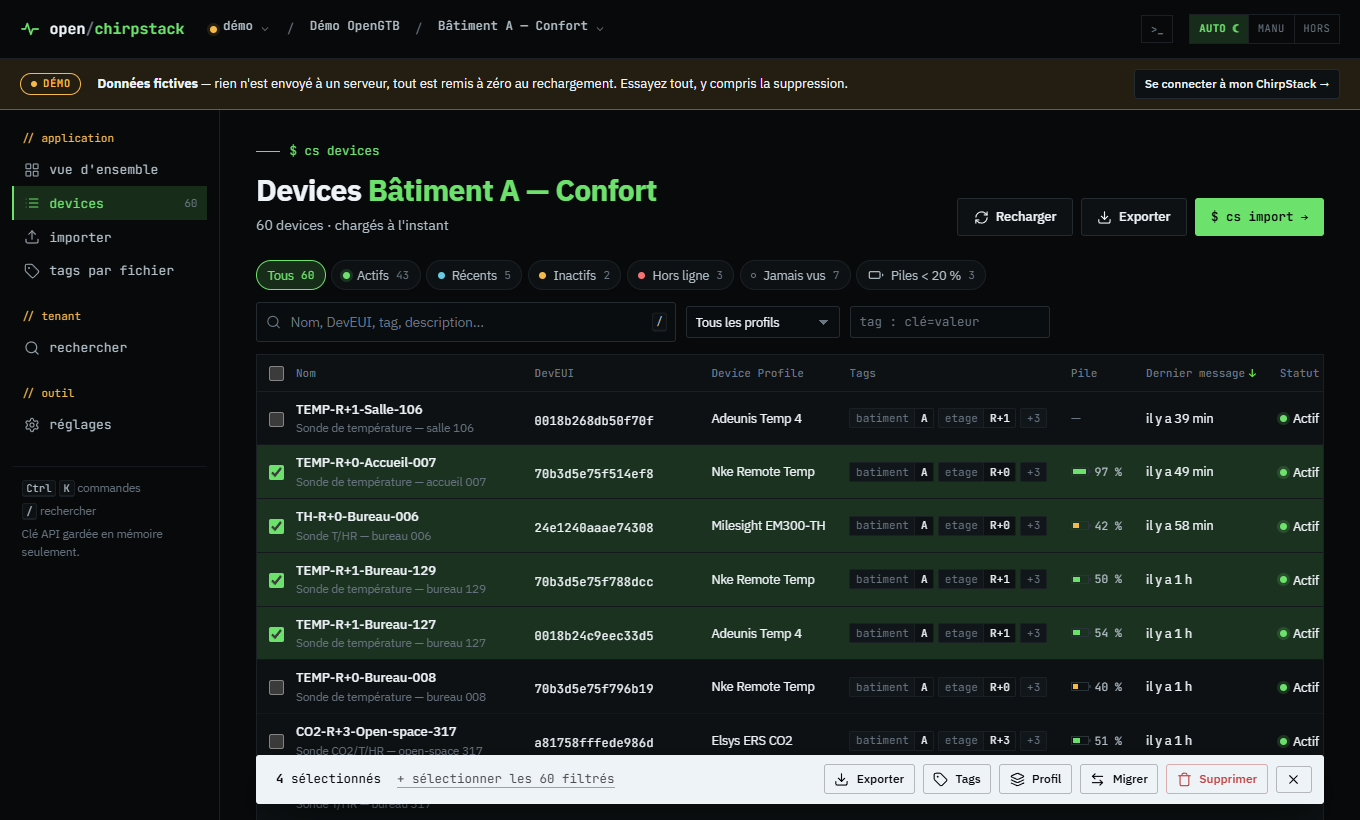
- Devices
- Filterable list (status, profile, tag, search), sorting, range selection (Shift + click), detail sheet with keys, measurements and radio link.
- Bulk actions
- CSV / Excel export, add or remove tags, change Device Profile, migrate to another application, delete with backup.
- Import
- CSV (any delimiter, UTF-8 or Windows-1252), Excel, paste from a spreadsheet or type directly. Columns detected automatically, profile given by name, full validation before sending, duplicates updated, import can be cancelled.
- History
- Measurements stored by ChirpStack (temperature, humidity, CO2, setpoint, meters…) and radio link: several devices on one chart, one axis per unit, zoom, statistics, CSV and PNG export.
- Tags from file
- Exact preview of changes (before → after), merge or replace.
- Search
- A full or partial DevEUI, a name, a tag value, across the whole tenant.
- Import profiles
- Mandatory tags on every import (building, floor, lot…).
- Command palette
- Ctrl+K: jump to a screen, switch application, look up a DevEUI.
Designed so you never lose anything
- migration first copies each device (record, tags, keys, session) and puts it back in its original application if re-creation fails;
- import never deletes an existing device: it updates it;
- any deletion can be preceded by a JSON backup, re-importable with a drag and drop;
- Excel cells formatted as numbers, which corrupt DevEUIs, are detected and flagged.
§ 02 Up and running in 1 minute
- Download the file for your system from the GitHub releases :
Windows open-chirpstack-windows-amd64.exe macOS (Apple Silicon) open-chirpstack-macos-arm64 macOS (Intel) open-chirpstack-macos-amd64 Linux open-chirpstack-linux-amd64 (or -arm64, Raspberry Pi) - Run it. Your browser opens on the tool by itself.
- Enter your ChirpStack address (the one of its web interface, for example
http://192.168.1.10:8080) and your API key.
Where to create an API key? In ChirpStack, menu API Keys (admin key, access to all tenants), or inside a tenant, menu API Keys (key limited to that tenant). With a tenant key, simply paste the address of a ChirpStack page of that tenant: the ID is extracted from it.
Got a key at hand and no idea what it is for? The JWT decoder gives you its ID, type and expiry.
Keep the terminal window open while using the tool; close it to stop the tool. Running the file again while it is already running simply reopens the tab.
First launch: system warnings
The file is not digitally signed (a signature costs several hundred euros per year), so your system warns you the first time:
- Windows : “Windows protected your PC” → More info → Run anyway.
- macOS : right-click the file → Open → Open. If macOS still refuses:
xattr -d com.apple.quarantine open-chirpstack-macos-*thenchmod +x open-chirpstack-macos-*. - Linux :
chmod +x open-chirpstack-linux-*then./open-chirpstack-linux-amd64.
The source code is fully public: you can read it or build the tool yourself (Go).
Each release also publishes the checksums SHA256SUMS.txt.
§ 03 Security and privacy
- Your API key stays on your machine. Kept in memory for the session only, never stored, sent only to your ChirpStack server.
- No data sent anywhere else. No analytics, no telemetry, no resource loaded from the internet: the tool works offline.
- The local relay only listens on your machine (127.0.0.1), rejects requests coming from other websites and enforces a strict security policy.
- Saved servers and import profiles are kept in your browser; exportable as JSON from Settings to share them (without API keys).
Bulk operations modify your ChirpStack. Try it first on a test application.
§ 04 Compatibility
- ChirpStack v4.
- ChirpStack web interface address, over HTTP or HTTPS, including behind a reverse proxy (nginx, traefik…).
- Self-signed certificate: advanced options → Accept self-signed HTTPS certificate.
- Component
chirpstack-rest-api(port 8090) : advanced options → Access type → REST API.
# launch options
open-chirpstack --port 9000      # local port (8765 by default)
open-chirpstack --no-browser     # do not open the browser
open-chirpstack --version
§ 05 How it works
A browser cannot call the ChirpStack API directly from another page (CORS rule). The executable therefore serves two things, on your machine only: the web interface (embedded) and a small relay that translates its calls into gRPC-web to ChirpStack — the protocol used by the official interface. Wherever the ChirpStack interface opens, the tool works.
Navigateur ──HTTP local──▶ open-chirpstack (127.0.0.1) ──gRPC-web──▶ your ChirpStack
MIT licence. Independent project, not affiliated with ChirpStack or its authors. github.com/OpenGTB/open-chirpstack