APEX #3 — Zigbee2MQTT: Making $15 Modules Talk to a Professional BMS
19 October 2026 · 5 min
#distech-controls,#eclypse-apex,#docker,#zigbee,#zigbee2mqtt,#mqtt,#serie-apex
ECLYPSE APEX series — episode 3/6 · Previous: #2 The foundations
Some combinations shouldn’t work. Pineapple on pizza. Socks with sandals. And a SONOFF home automation module driven by a commercial building automation controller. Yet I promise you, that last one works very well, and it’s today’s program.

We install Zigbee2MQTT in a container on the ECLYPSE APEX, connect it to an Ethernet Zigbee coordinator, and pair a first module. All the data will land in the Mosquitto from episode 2.
The gear
- An ECLYPSE APEX with Facilities (Containerization menu) and the
mosquittocontainer running on port 50083. - A SMLIGHT SLZB-06MG24 coordinator, over Ethernet.
- A Zigbee module to test with. In my case, a SONOFF ZBMINIR2.
Why an Ethernet coordinator and not a good old USB dongle? Simply because the APEX doesn’t do USB passthrough to containers. The SLZB exposes Zigbee on a TCP port, Zigbee2MQTT connects to it, and that’s it. Bonus: you can place the coordinator where the radio signal is good, not necessarily inside the metal panel.
The architecture
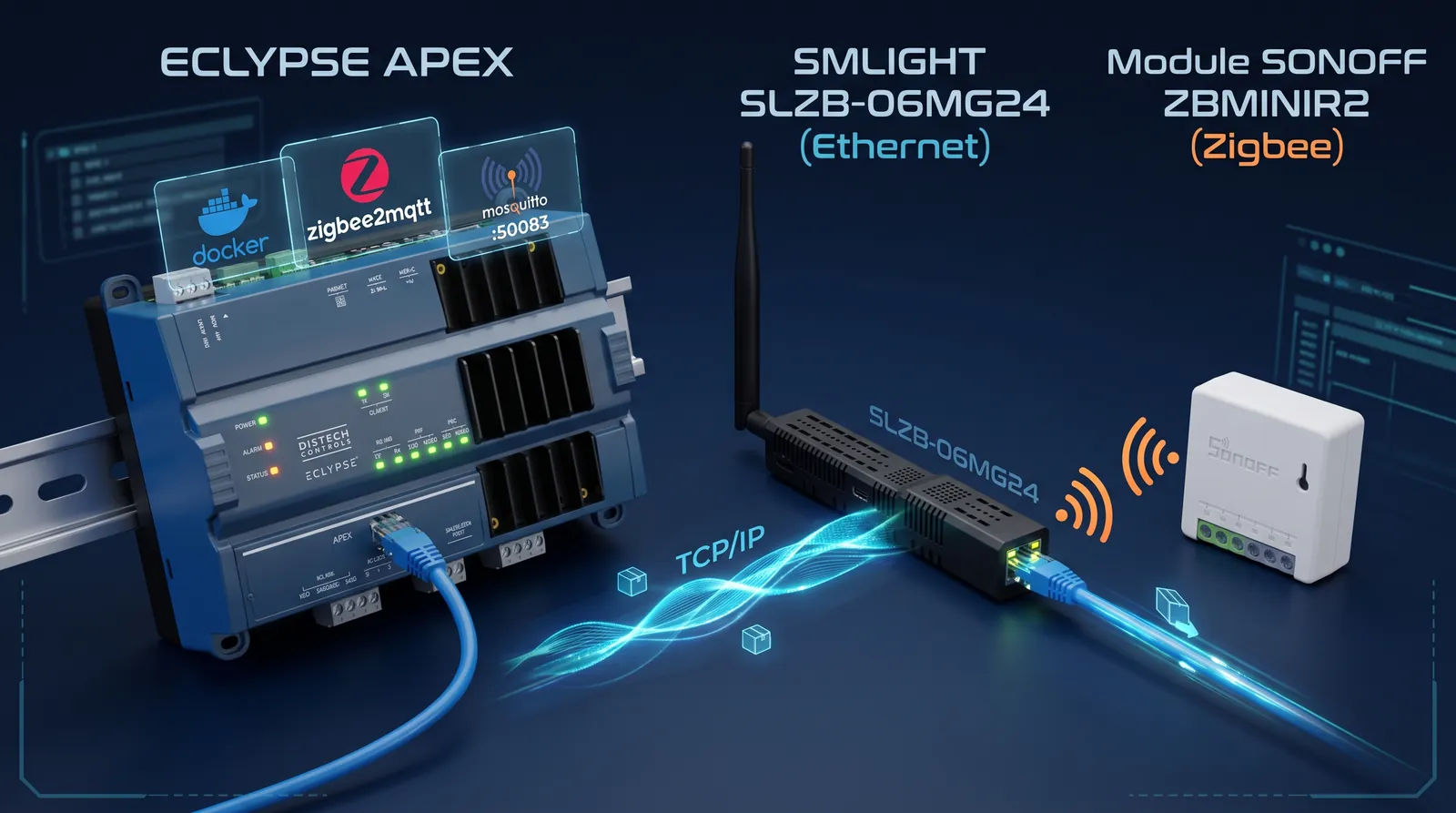
SLZB-06MG24 (Ethernet, coordinator)
     ▲ TCP 6638
┌────┴────────────────┐      ┌──────────────────────┐
│  zigbee2mqtt        │─────▶│  mosquitto  :50083   │ ◀── Node-RED / Telegraf / Niagara
│  web :50084         │ MQTT └──────────────────────┘
│  volume z2m-data    │
└─────────────────────┘
        ECLYPSE APEX
Good news: no custom image needed. The official koenkk/zigbee2mqtt image is Alpine-based and multi-arch ARM64. So it has a shell, and we’re going to use it.
Step 1 — Prepare the SLZB-06MG24
First little trap: the SLZB has a locally administered MAC address, so network scanners show it as “Unknown”. The easiest way to find it is to look for the Zigbee socket port:
nmap -p 6638 --open 192.168.X.0/24Then, in its web interface:
- Ethernet mode;
- Zigbee coordinator firmware (neither router nor Thread);
- socket port 6638;
- fixed IP, via DHCP reservation or static. If the IP changes, Zigbee2MQTT loses its coordinator.
Step 2 — Pull the image
Facilities → Images → Add: koenkk/zigbee2mqtt:2.14.1.
Yes, a fixed tag. We talked about it: latest is for people who like surprises.
Step 3 — Create the container
Name: zigbee2mqtt. Replace IP_APEX and IP_SLZB with your addresses:
{
  "Image": "koenkk/zigbee2mqtt:2.14.1",
  "ExposedPorts": { "8080/tcp": {} },
  "Entrypoint": ["sh", "-c"],
  "Cmd": [
    "if [ ! -f /app/data/configuration.yaml ]; then printf '%s\\n' 'mqtt:' '  base_topic: zigbee2mqtt' '  server: mqtt://IP_APEX:50083' 'serial:' '  port: tcp://IP_SLZB:6638' '  adapter: ember' 'frontend:' '  enabled: true' '  port: 8080' 'advanced:' '  network_key: GENERATE' '  pan_id: GENERATE' '  ext_pan_id: GENERATE' > /app/data/configuration.yaml; fi && cd /app && exec node index.js > /app/data/z2m-console.log 2>&1"
  ],
  "HostConfig": {
    "CpusetCpus": "0",
    "RestartPolicy": { "Name": "unless-stopped", "MaximumRetryCount": 0 },
    "PortBindings": { "8080/tcp": [{ "HostPort": "50084" }] },
    "Mounts": [
      { "Target": "/app/data", "Source": "z2m-data", "Type": "volume", "ReadOnly": false, "Consistency": "default" }
    ]
  }
}
Why this slightly odd if?
On first start, Zigbee2MQTT generates the network key, the PAN ID and the Extended PAN ID, and writes them to configuration.yaml. It then records the paired devices in there. If we rewrote the config on every start, we’d create a blank Zigbee network on every restart: every module re-paired one by one after each power cut. Not exactly a great idea.
So the if only writes the config if it doesn’t exist yet. And the console output goes to a file in the volume, since the APEX has no docker logs.
⚠️ Never delete the
z2m-datavolume. It holds the network key and the device database. Deleting it means re-pairing the whole fleet. The container itself can be deleted and recreated safely.
Step 4 — Start and verify
- Mosquitto must already be running. Start
zigbee2mqtt. - Wait 20 to 30 seconds.
- Open
http://IP_APEX:50084: the Zigbee2MQTT interface appears. - In Settings → About, the EmberZNet coordinator must be recognized.
- In MQTT Explorer,
zigbee2mqtt/bridge/statemust read{"state":"online"}.
If the Logs tab shows “Nothing to show”, don’t panic: it only displays logs emitted since the page was opened.
Step 5 — The first pairing
- Click Permit join (254 seconds by default).
- Put the module in pairing mode. For the ZBMINIR2, that’s on first power-up, or with a long press of about 5 seconds.
- It shows up in Devices. Rename it, and it will then publish on
zigbee2mqtt/<name>. - Test the command in the Exposes tab. Click, the relay clacks. I’ll admit the first time, I smiled stupidly at my desk.
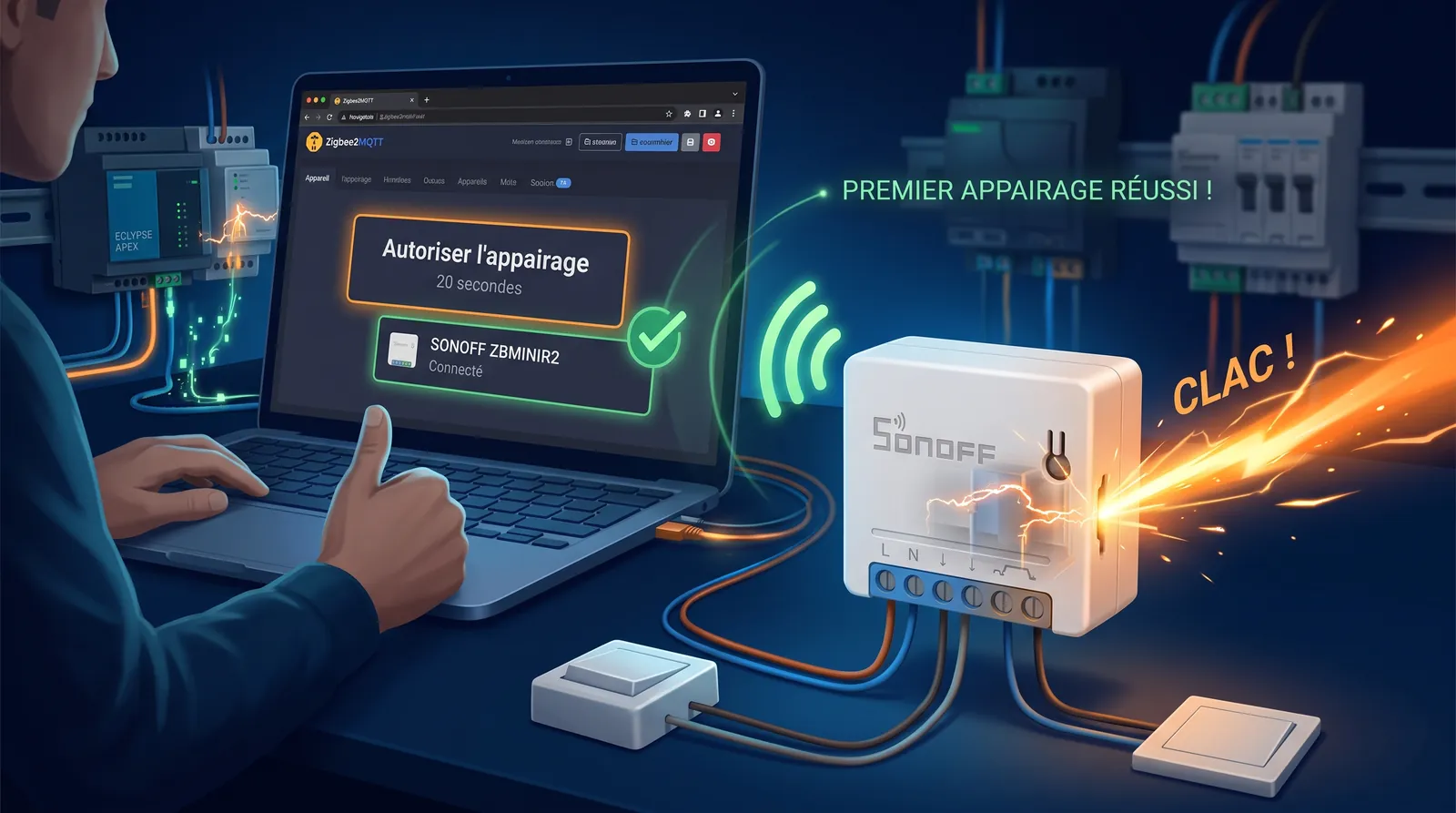
A few notes on the ZBMINIR2:
- it needs the neutral (L + N). It’s the ZBMINIL2 that works without;
- the S1/S2 terminals are a dry contact for a wall switch, no 230 V on them;
- when mains-powered, it becomes a router and extends the Zigbee mesh;
- two “Device left” messages during pairing are normal: it leaves its old network after the reset.
Last test, the one that matters: stop then restart the container. The module must still be there, with its name, and respond without re-pairing. On my unit: validated.
The troubleshooting kit: FileBrowser
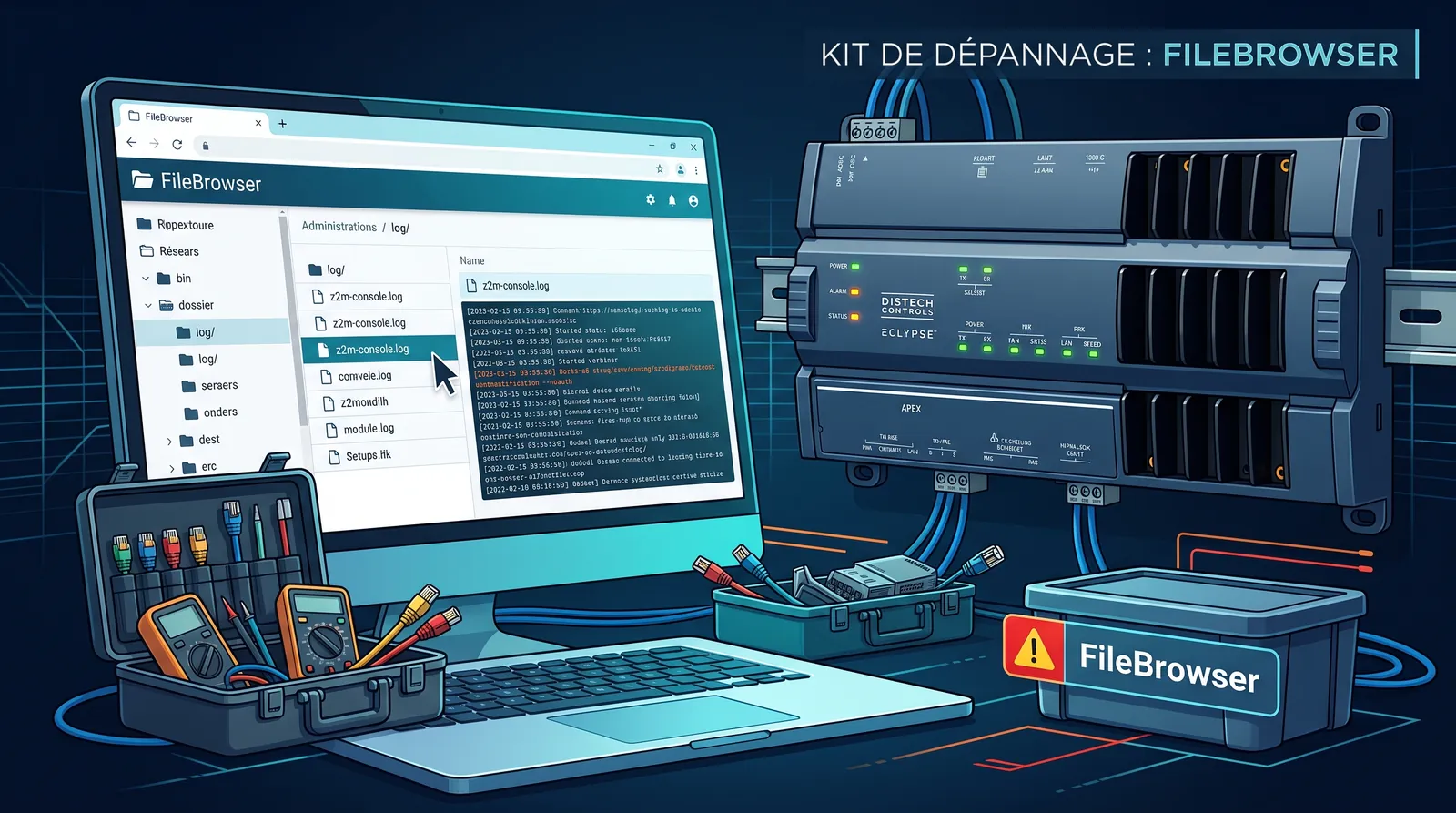
No SSH, but you do need to read logs and tweak the config now and then. Solution: a FileBrowser mounted on the same volume.
{
  "Image": "filebrowser/filebrowser:latest",
  "ExposedPorts": { "80/tcp": {} },
  "Cmd": ["--noauth"],
  "HostConfig": {
    "CpusetCpus": "0",
    "RestartPolicy": { "Name": "unless-stopped", "MaximumRetryCount": 0 },
    "PortBindings": { "80/tcp": [{ "HostPort": "50092" }] },
    "Mounts": [
      { "Target": "/srv", "Source": "z2m-data", "Type": "volume", "ReadOnly": false, "Consistency": "default" }
    ]
  }
}
At http://IP_APEX:50092, you’ll find z2m-console.log for startup errors and the log/ folder for the Zigbee2MQTT logs.
⚠️
--noauthplus aconfiguration.yamlthat contains the network key is a wide-open door. Stop this container as soon as the troubleshooting is done.
And yes, you have a sharp eye: filebrowser/filebrowser:latest, right after lecturing you about fixed tags. Yeah, I know: do as I say, not as I do! FileBrowser mostly served me for quick-and-dirty debugging: you turn it on, read its logs, shut it off. That’s how I took my notes, and I’m handing them over as is. If you plan to keep it more than ten minutes, pin a version like for the others.
| Symptom | Likely cause | Action |
|---|---|---|
| Creation rejected “administrative policy” | OPA: port or JSON format | Check ExposedPorts, Mounts, CpusetCpus, host port in 50xxx |
| Restart loop | Broker missing or SLZB unreachable | Read z2m-console.log via FileBrowser |
| Coordinator not found | SLZB IP changed, wrong mode or firmware | Fixed IP, Ethernet mode, coordinator firmware, port 6638 |
| Zigbee2MQTT won’t start | Mosquitto stopped | Start mosquitto before zigbee2mqtt |
And what about RAM?
Zigbee2MQTT uses between 150 and 250 MB on the APEX. That’s fine on its own, but keep an eye on it if you also run InfluxDB, Grafana, Telegraf and Node-RED. Reminder from episode 1: we have about 1.8 GB for everyone.
What’s next
Your Zigbee module now publishes on zigbee2mqtt/<name>. Problem: the ECLYPSE can’t subscribe to MQTT, it can only publish. So the data is there, in the broker… but the controller doesn’t see it yet. Not for long.
In the next episode, it’s the grand festival: Node-RED and the REST API turn this module into real BACnet points, all by themselves. Break out the party hats.
Links
$ gtb react
Did this article resonate?
$ gtb comments --tail
Comments
// loading…